
In this post, we’ll walk you through one of the biggest features of UI Online – certifying for your continuing benefits.
In order to certify for continuing benefits using UI Online, you first need to register in Benefit Programs Online and create a UI Online account. If you haven’t created an account yet, please see our other instructional post “Overview and Registration“, which will assist you in creating your Benefit Programs Online and UI Online accounts.
After creating your account, log in using your email address and password.

After logging in, check the “Notifications” section.
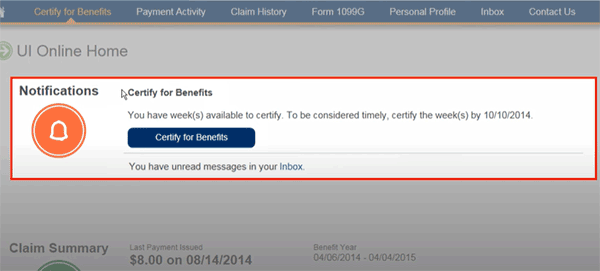
When you have weeks that are ready to be certified, you’ll see the “Certify for Benefits” button.
Be sure to submit your certifications by the specified date. Failure to certify timely may affect your eligibility for weeks. If not, a message will display instead, advising you when to check back.
To get started, select the “Certify for Benefits” button.
Certify for Benefits
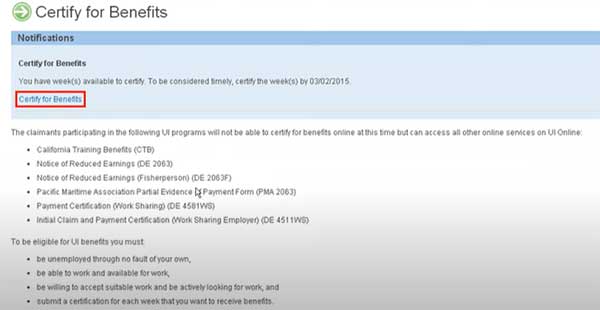
Next you’ll see the “Certify for Benefits” page which provides information about the certification process as well as some useful resources for your reference.
When you’re ready, select the “Certify for Benefits” link to begin certifying for your continuing benefits.
Certification Questions
Most customers certify for continuing benefits two weeks at a time. If you have multiple weeks that need to be certified, you’lll start with the oldest week first.
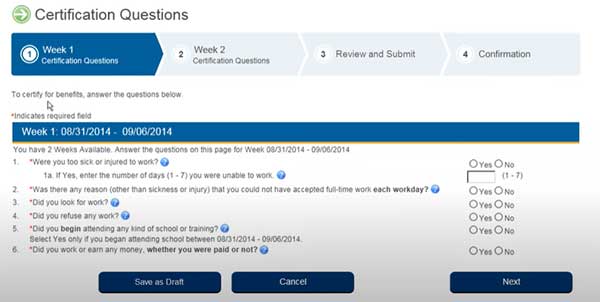
At the top of this page you’ll notice a progress bar. This lets you know where you are in the certification process. In this example, we are currently certifying for continuing benefits for Week 1.
You will also notice that each certification question has the “? Help icon”.
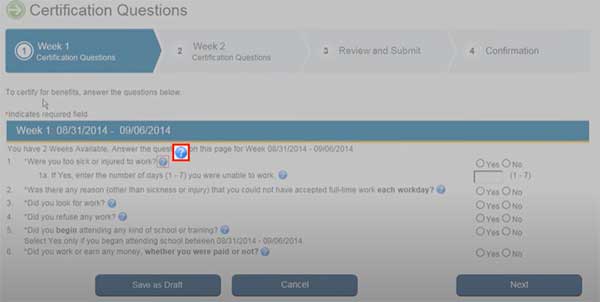
If you are unsure on how to answer any of the certification questions, select the “? Help icon” for more clarification.
You’ll start with Question #1 and there will be a total of six questions to answer. These are the same questions found on the paper Continued Claim form. If you try to leave the page without saving, you’ll receive this warning message.
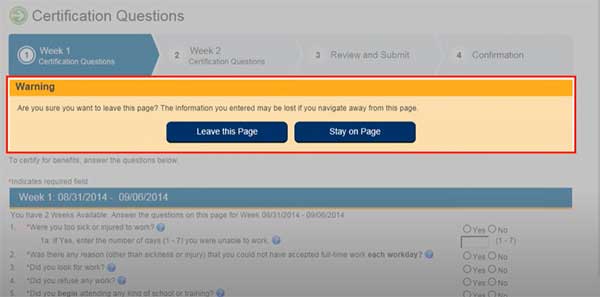
Select the “Stay on Page” button to stay on the screen and continue. Select the “Save as Draft” button, if you need to leave the screen while you are in the process of certifying for your continuing benefits.
This allows you to pick up from where you left off, next time you log in.
Your information will be retained until Sunday at midnight.
Now your progress to this point is saved and you can pick up right where you left off.
Once you have answered all the questions select the “Next” button to continue.
Clarification
If further information is needed to help process your certification, you’ll be provided with clarification questions, like the ones shown on this screen, in order to help the EDD determine if you meet the eligiblity requirements.
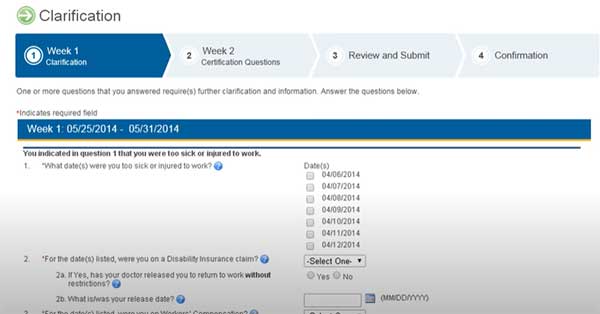
Let’s briefly go over a few types of clarification questions you might see.
For example, when you select “Yes” for Question #1 which asks, “Were you too sick or injured to work?” you’ll be required to answer clarifying questions like the ones shown here.
If there is any question as to whether or not you are eligible for payment, you may be contacted by a representative, or a phone appointment will be scheduled and you will be notified by mail.
Here’s another example.
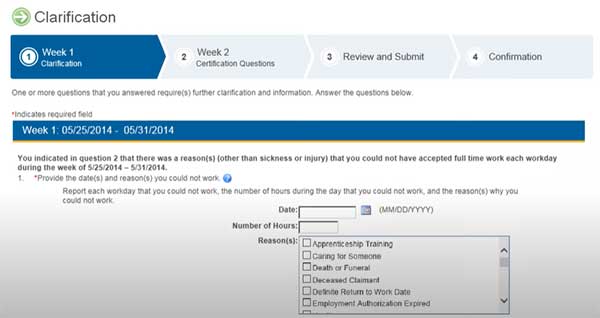
When you select “Yes” for Question #2 which asks, “Was there any reason (other than sickness or injury) that you could not have accepted full-time work each workday?” you’ll be required to answer clarifying questions like the ones shown on this screen.
When you answer “Yes” to Question #3 which asks, “Did you look for work?” you’ll be presented with this optional screen that you can use to document your work search efforts.
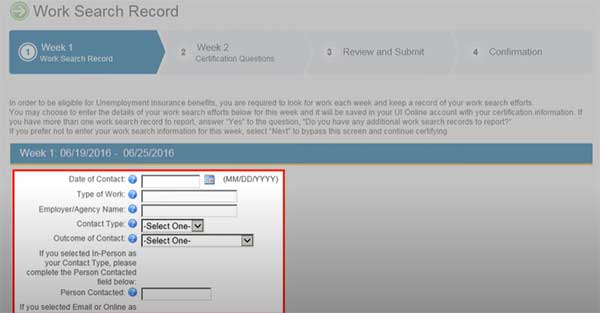
Although you’re not required to complete this screen, we do encourage you to use this helpful tool, since the information you enter here can be retrieved later, at any time, simply by accessing your certification record. If you do not wish to use this helpful tool, just go ahead and select the “Next” button to continue with the certification process.
When you select “Yes” for Question #4 which asks, “Did you refuse any work?” you’ll be required to answer clarifying questions like the ones shown on this screen.
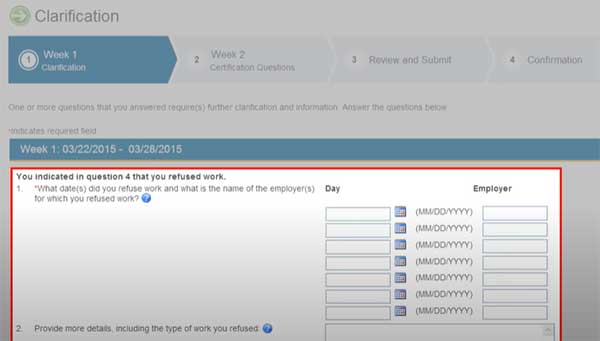
When you select “Yes” for Question #5 which asks, “Did you begin attending any kind of school or training?” you’ll be required to answer clarifying questions like the ones shown on this screen.
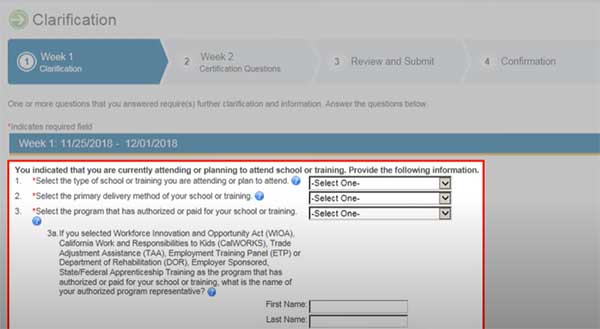
When you select “No” for Question #6 which asks, “Did you work or earn any money, whether you were paid or not?” you’ll be required to answer this follow-up question regarding other types of income.
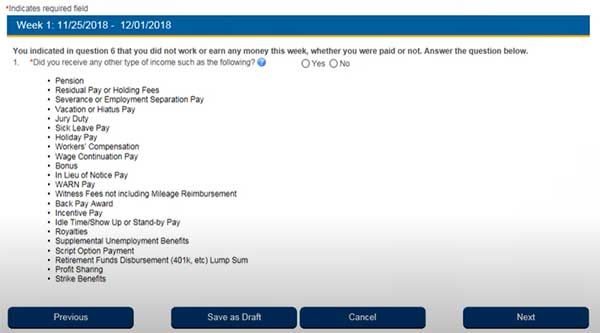
Review the different types of income and then select “Yes” or “No” to indicate whether or not you’ve received any of the income listed. In cases where you recieved a certain type of income that isn’t listed, and you’re not sure if it needs to be reported, go ahead and select “Yes.” After making your selection, select the “Next” button to continue.
When you select “Yes” (as shown on the previous screen), you’ll be presented with these additional questions and will need to provide a narrative description of the type of income you received.
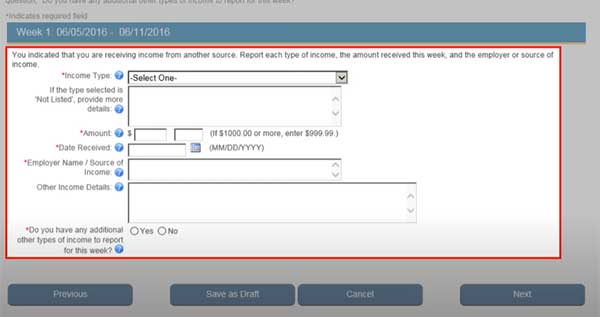
Answering these questions will help the EDD determine whether or not the income you recieved is deductible from your weekly benefit payment. If the income you recieved isn’t listed, select “Not Listed” from the “Income Type” drop-down menu.
After entering the required information, select “Next” to continue. Now that we’ve completed week 1, let’s start with week 2.
Week 2
For week 2, you’ll follow the same steps as shown for week 1 except here you’ll notice two additional questions at the bottom.
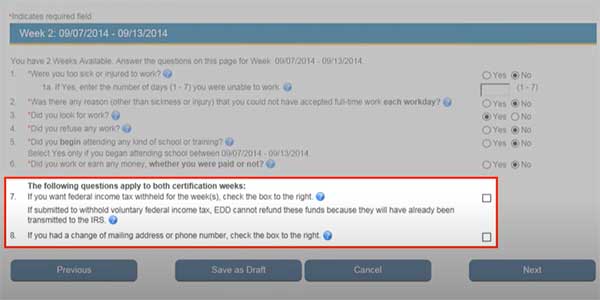
Here you can request that federal income tax be withheld for both weeks, or update your contact information, if needed. After answering the questions, select “Next” to continue. You’re almost done.
Review and Submit Confirmation
Once you answer all the certification questions, it’s time to review your answers for accuracy. Please read the “Acknowledgement” section below.
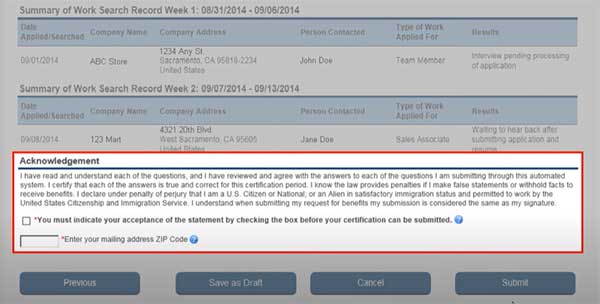
This is important because submitting false information or withholding facts can result in a denial of benefits and/or penalties. If everything is correct, select the acknowledgement check box at the bottom of page and enter your ZIP Code.
Checking the box and entering your ZIP code also serves as your electronic signature, indicating you have read and understand the Acknowledgement statment. If you need to make changes to any of your answers, simply select the “Previous” button to go back to any of the previous screens.
When you’re ready, select “Submit.” Selecting “Submit” finalizes and completes the certification process for these weeks.
Certification Confirmation
Congratulations, you are done! You have successfully submitted your certification to the EDD when you see this screen with your confirmation number.
You should save this number for your reference or select the “Confirmation” link to print a copy for your records.

If you have additional weeks that are available to be certified, click the “Return to Certify for Benefits” button to repeat the process.
Keep in mind, you can only certify for two weeks at a time regardless of the number of weeks available.
For example, if you have 4 weeks available for certification, you will need to complete this process two times. For added convenience, you may access electronic copies of your submitted continued claim certifications anytime by selecting “Claim History” from the main menu.
The “Claim History” screen provides an overview of all the weeks you have certified. For additional details for a specific week, locate the desired week and select the “Certification” link.
Here, you can also view a copy of your “Certification Confirmation Details” screen which includes your answers and the clarifying information that you provided. You may print a copy by selecting the “Print” button or exit the screen by selecting the “Close Window” button.
We hope you have found this post helpful in certifying for your continuing unemployment benefits in a fast, convenient, and secure way online. We invite you to visit the EDD website and view other instructional posts available to learn more about the many different benefits and conveniences of using UI Online.